
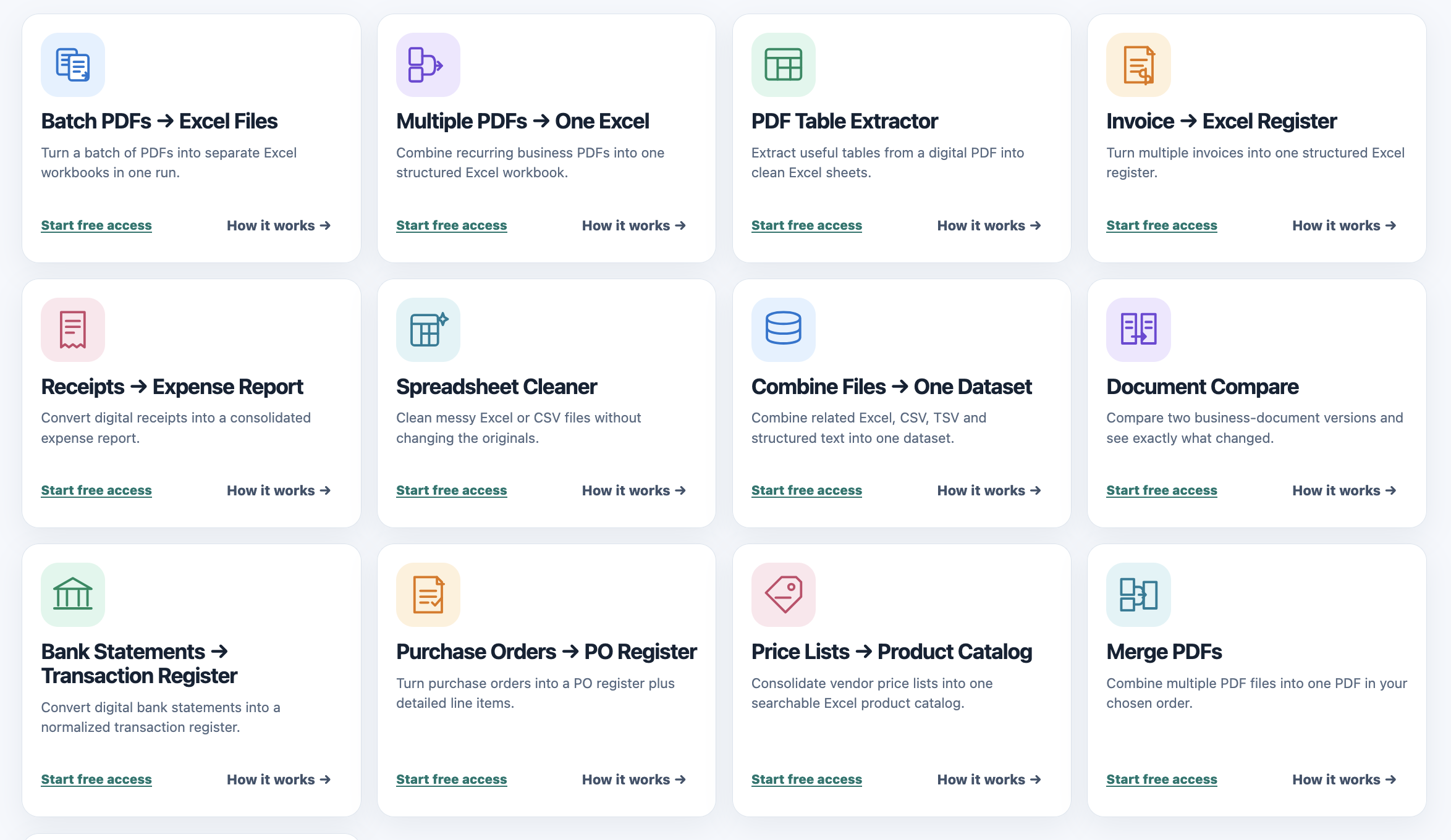
Choose a Product
Choose the FilesStayLocal Product that matches what you want to do. Free Access currently lets you activate one Product at a time.
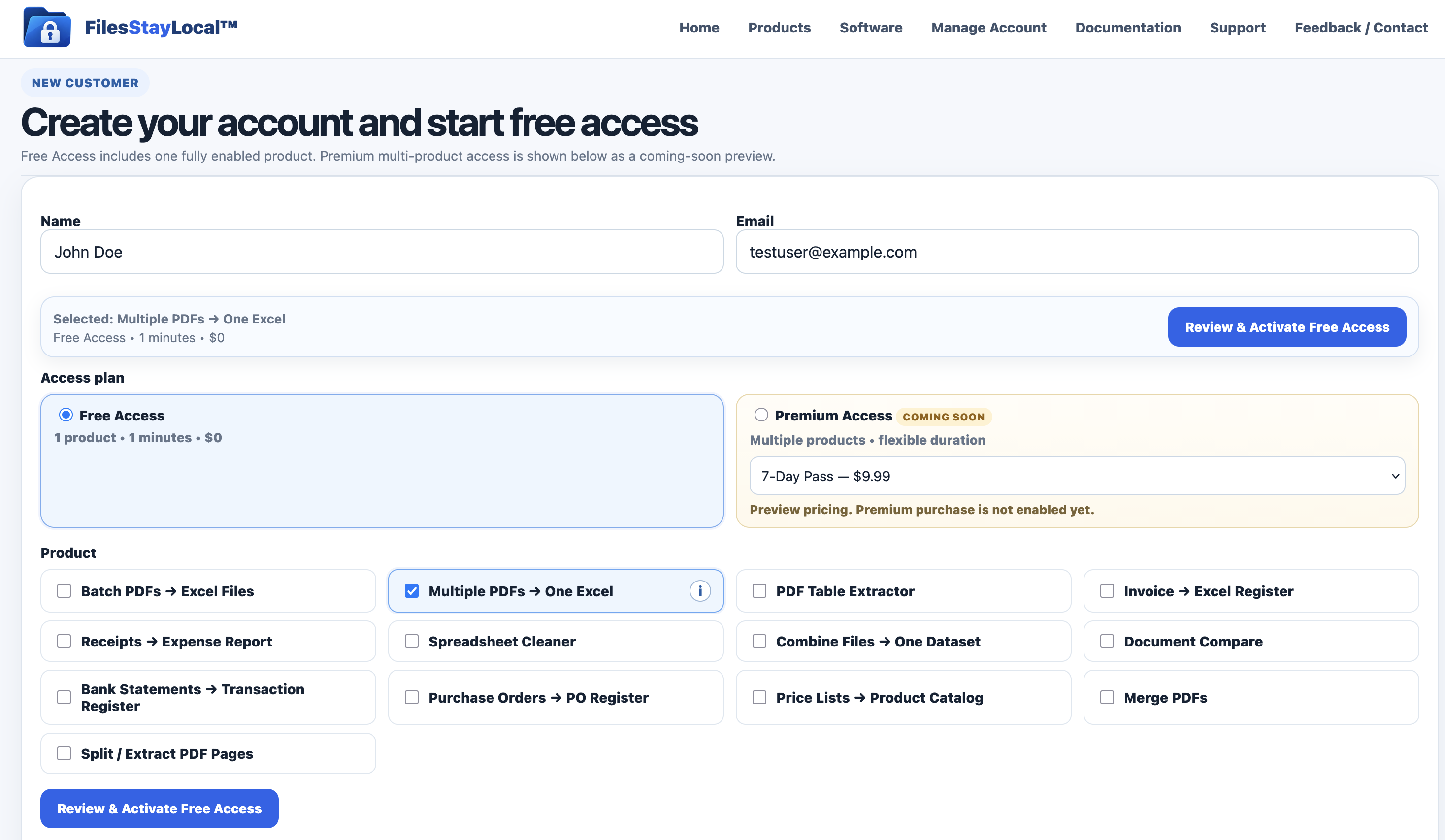
Create Your Account
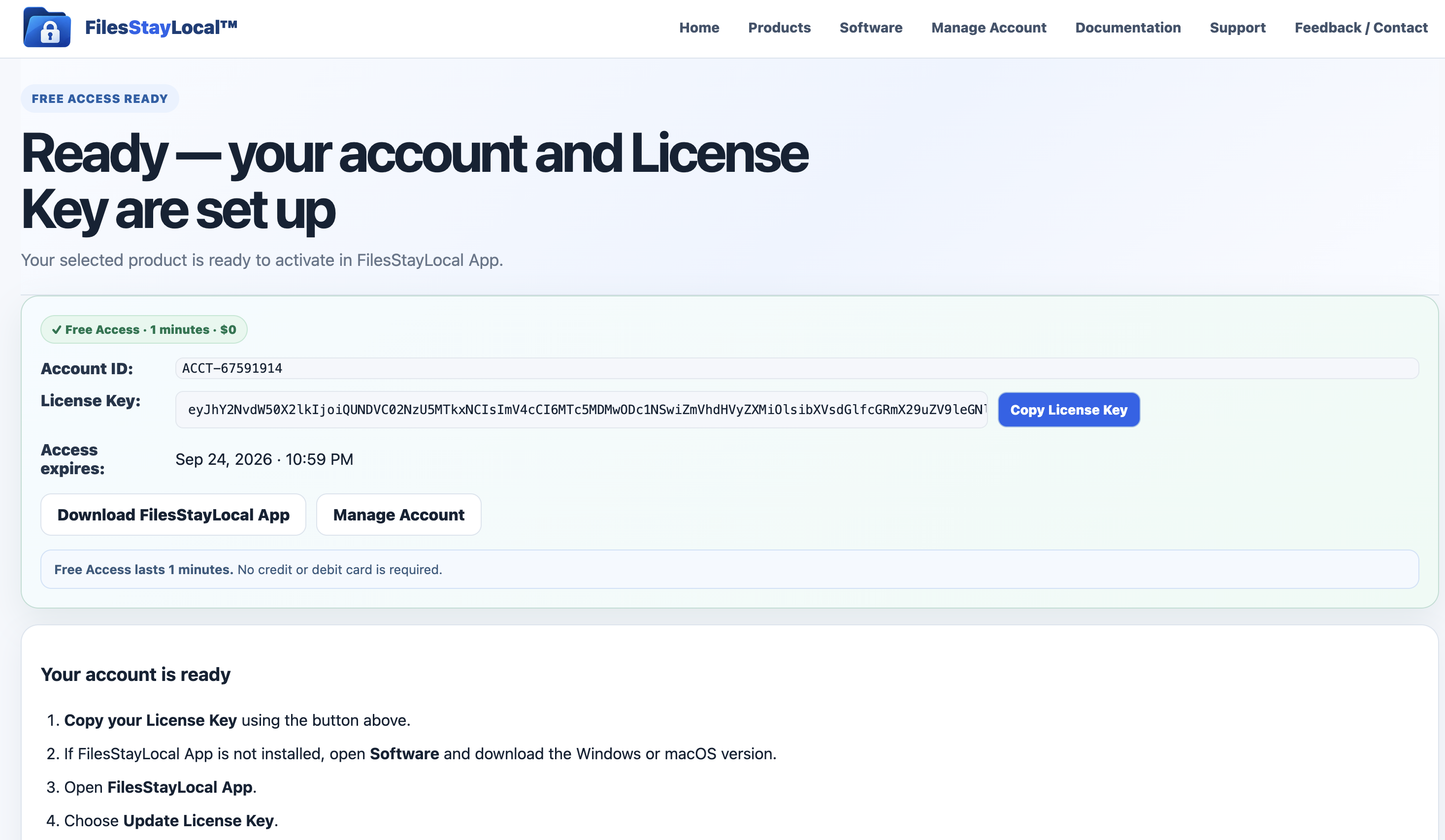
Enter your name and email. FilesStayLocal creates your account and assigns your permanent Account ID together with a License Key for the selected Product. Your Account ID is your permanent customer reference. Your License Key represents your current signed entitlement.
Install the Desktop App
Download FilesStayLocal for macOS or Windows and install the utility on your computer.
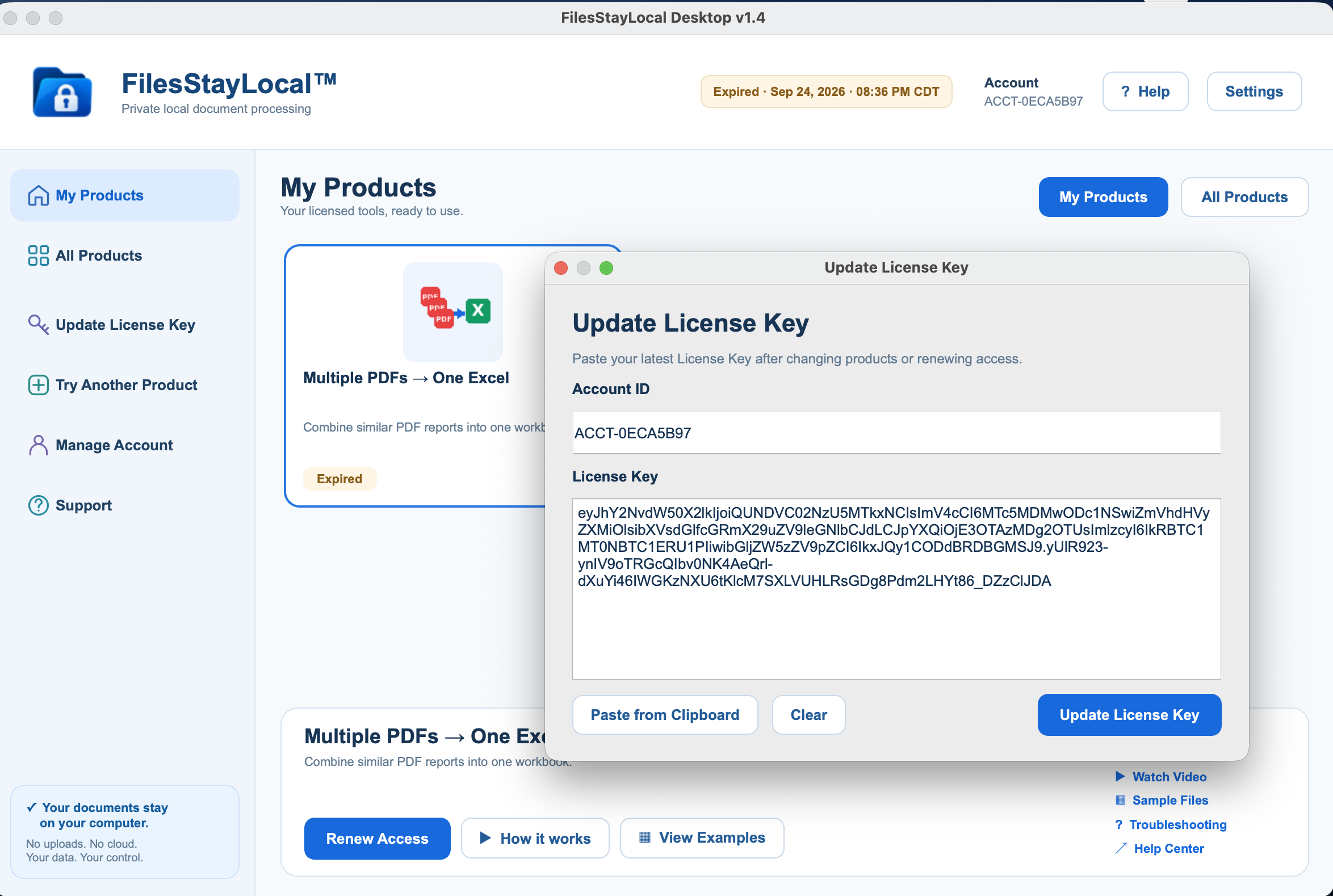
Paste Your License Key
Open FilesStayLocal and choose Update Access. Paste the License Key. Your Account ID is derived and linked automatically from the signed license. You should not normally need to type your Account ID manually.
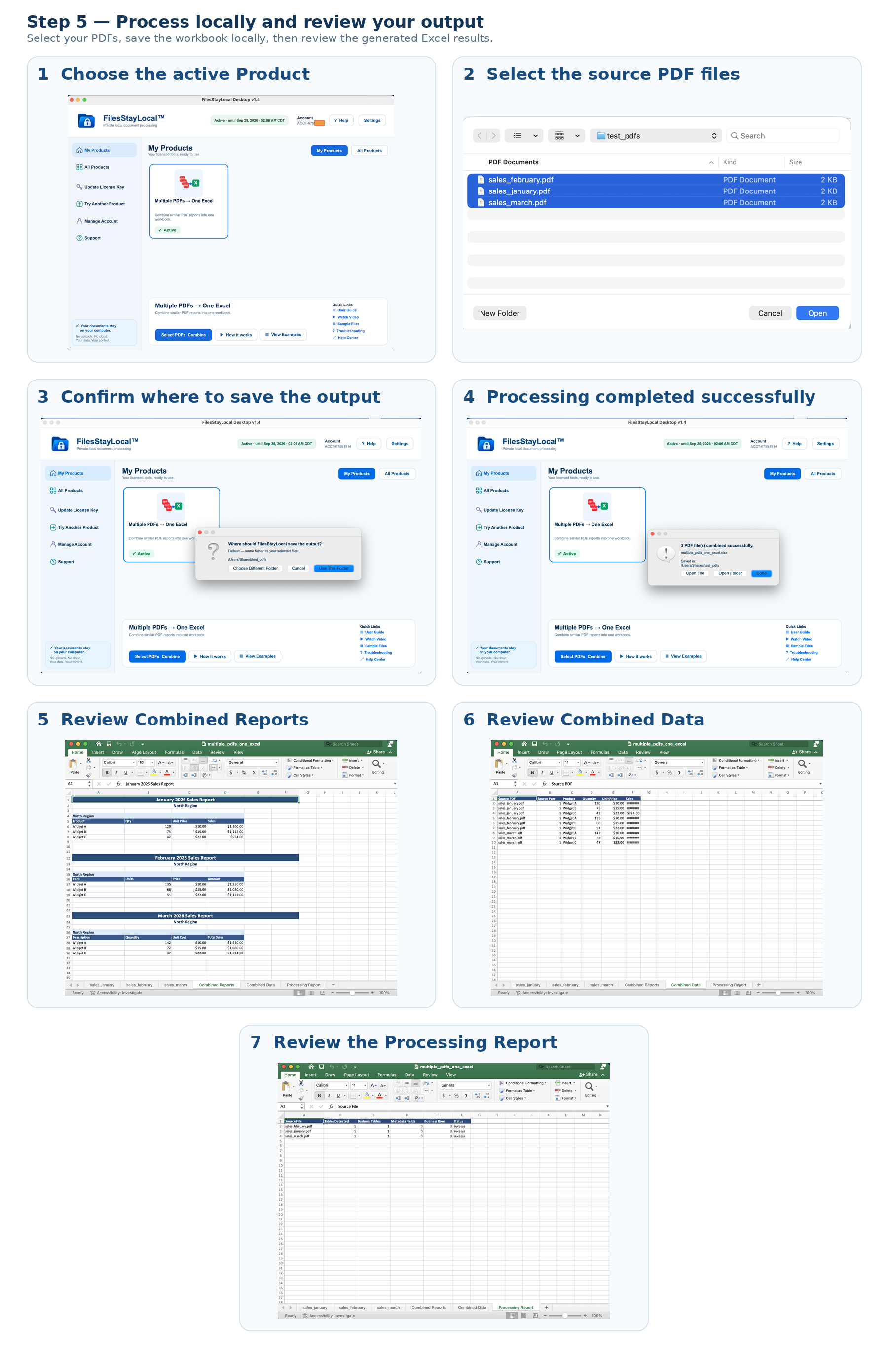
Process Your Files
Select your source files inside the desktop app, run the Product, and save the generated output on your computer.
What the website does
What the desktop app does
Your documents are processed locally
FilesStayLocal does not require you to upload the documents you want to process. The website handles account management, licensing, software downloads, Product access and help. Document processing happens in the installed desktop app.
Public production releases will use the applicable platform signing and verification processes before distribution. Pre-release builds used during development may not yet carry final production signing.
Source-file safety
Your original files are not modified. FilesStayLocal reads your selected source files locally and creates separate output files. It does not overwrite, rename, move or delete your originals.
Keep backups of important documents and review generated output before relying on it. Conversion or extraction may require review for unusual layouts, damaged files, unsupported structures, scanned/image-only material or ambiguous data.
FilesStayLocal is a document-processing productivity tool. Generated output is not a substitute for professional legal, tax, accounting, medical or financial advice where such advice is required.